

How to Design 3D Models for Printing: Best Free and Paid Software
Table of Contents
I spent three frustrating hours fighting with professional CAD software, trying to create what should have been a simple phone stand. The interface overwhelmed me with hundreds of tools I didn’t understand, the terminology felt like a foreign language, and my “beginner tutorial” assumed knowledge I simply didn’t have. I was about to give up on 3D printing design entirely when a friend asked a simple question: “Why are you using industrial engineering software to make a phone stand?”. She pulled up Tinkercad on her laptop—a web-based tool with colorful blocks you drag and drop like digital LEGO. Within twenty minutes, I had designed, exported, and sliced my phone stand. It printed perfectly. That experience taught me the most important lesson about learning how to design 3D models for printing: the “best” software isn’t the most powerful—it’s the one that matches your skill level, project needs, and learning style. A mechanical engineer designing complex assemblies needs parametric CAD with precise dimensional control. An artist sculpting organic figurines needs different tools entirely. A beginner making simple household objects needs approachable software that doesn’t require engineering degrees. Understanding these distinctions prevents wasting time with inappropriate tools and accelerates your journey from concept to successful prints.
Choosing software for how to design 3D print models represents your first critical decision, fundamentally shaping your design approach and capabilities. The 3D modeling software landscape spans from completely free web-based tools requiring zero installation to professional-grade applications costing thousands of dollars annually. Between these extremes lie powerful free options like Fusion 360 (free for personal use), Blender (completely open-source), and FreeCAD (open-source parametric CAD)—each suited to different design philosophies and project types. The Reddit 3D printing community’s consensus emphasizes: “TinkerCad is a simplified CAD software. Blender has powerful tools for working with freeform shapes and animations. Fusion 360 is great for designing with specific measurements in mind”. This categorization—simplified CAD for beginners, organic modeling for artistic work, parametric CAD for precision engineering—provides a framework for understanding which tool suits your needs. As explored in our comprehensive pillar guide on how to design for 3D printing, software selection determines not just what you can create but how you think about design problems.
This detailed guide explores software options for designing 3D models for printing across skill levels and application types, covering beginner-friendly free tools perfect for learning, intermediate options balancing power and accessibility, professional-grade software for complex projects, specialized tools for specific design approaches, and practical guidance for choosing the right tool for your needs. Whether you’re taking your first steps into 3D design wondering how to design a 3D print model, transitioning from basic tools to more powerful options, or evaluating professional software for serious projects, this guide provides the information needed to make informed software choices that accelerate rather than hinder your 3D printing journey.
Understanding Software Categories for 3D Printing
Before evaluating specific programs, understanding fundamental software categories helps clarify which approaches suit different project types.
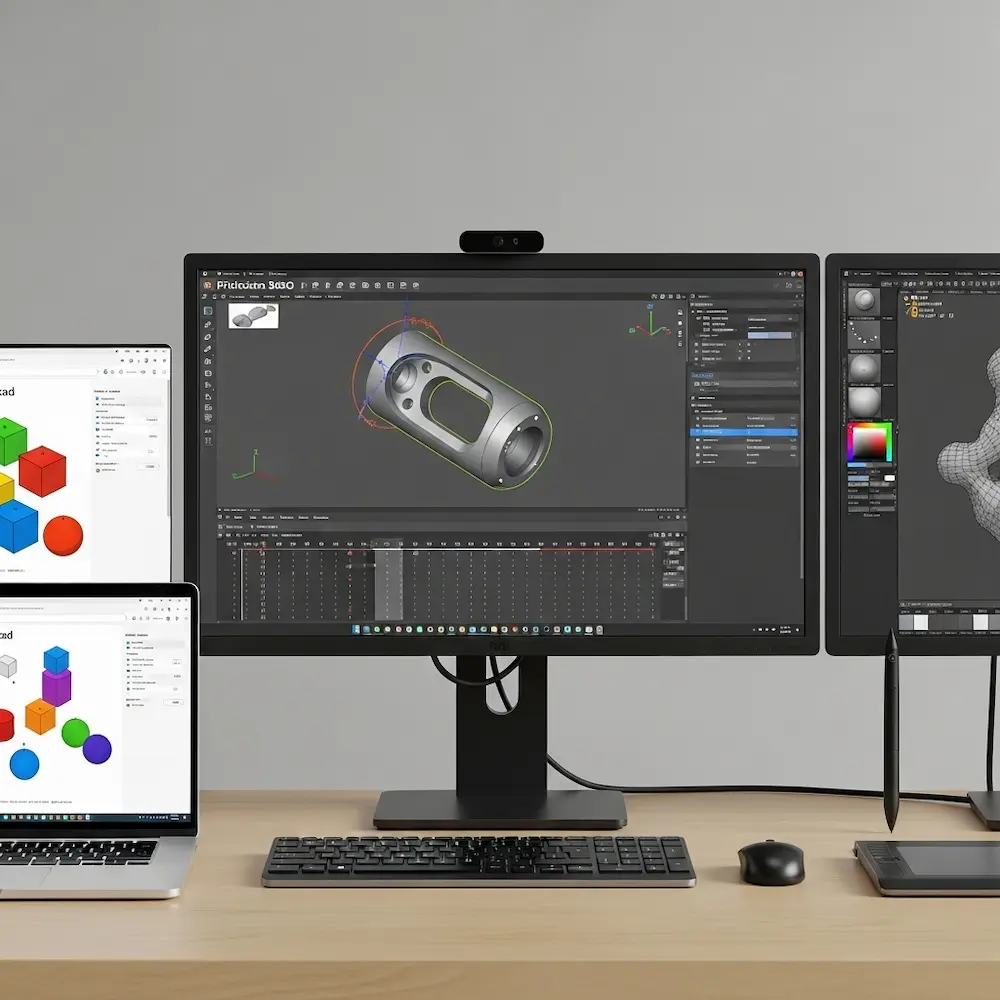
Parametric CAD vs. Direct Modeling vs. Sculpting
Parametric CAD (Computer-Aided Design) defines models through dimensions, constraints, and relationships. When you create a cylinder, you specify exact diameter and height. When you sketch a profile and extrude it, the software remembers this operation history. Change the original sketch, and the extrusion updates automatically. This approach excels for mechanical parts, functional designs, and anything requiring precise measurements. Tools like Fusion 360, FreeCAD, and professional SolidWorks use parametric modeling.
Direct modeling (also called solid modeling) builds shapes more intuitively without parametric history. Tinkercad exemplifies this approach—you place primitive shapes (boxes, cylinders, spheres), resize them, combine them, and subtract them to create forms. The Print3DEzy comparison notes Tinkercad’s “drag-and-drop interface” and “shape grouping tools”. This simplicity trades parametric power for immediate accessibility. Changes aren’t automatic; you modify shapes directly.
Sculpting software treats 3D models like digital clay, pushing, pulling, and smoothing virtual surfaces. Blender’s sculpting toolset includes “20 different brush types” and tools providing “power and flexibility required in several stages of the digital production pipeline”. This approach suits organic forms—characters, creatures, artistic sculptures, and anything flowing rather than geometric. The Reddit Blender discussion describes workflows involving “sculpt single pieces then join them in object mode and remesh everything”. These organic techniques differ fundamentally from CAD’s precise geometry.
Web-Based vs. Desktop Applications
Web-based tools require no installation and work on any device with a browser. Tinkercad’s description emphasizes it’s “a free web app for 3D design”. SketchUp Free similarly operates entirely in browsers. This accessibility lowers entry barriers—no software downloads, no system requirements concerns, and easy access from school or library computers. However, web apps typically offer less power than desktop counterparts and require internet connectivity.
Desktop applications provide maximum power and offline capabilities. Fusion 360, Blender, FreeCAD, and professional tools install locally. Desktop software handles more complex models, offers more sophisticated features, and works without internet once installed. The tradeoff is installation requirements and potential system compatibility issues.
Beginner-Friendly Free Software
Starting with appropriate beginner tools builds confidence and skills without financial or technical barriers.

Tinkercad: The Easiest Entry Point
Tinkercad represents the most accessible introduction to 3D design for printing. Developed by Autodesk and completely free, Tinkercad runs entirely in web browsers. The PAACADEMY article describes it as “ideal tool for beginners and also very useful for academic teachings” with “a drag-and-drop interface with a library of pre-made shapes and forms for quick and easy design”.
Core approach and features center on simplicity. You build models by placing primitive shapes (cubes, cylinders, cones, spheres) on a workspace, resizing and rotating them, then combining them using grouping or creating holes using subtraction. Print3DEzy highlights Tinkercad’s key features: “Drag-and-drop interface, Shape grouping tools, Simple circuits and code blocks, Easy STL export for 3D printing”. The platform even includes basic electronics simulation and block coding features.
Ideal use cases for Tinkercad include learning basic 3D design concepts, creating simple functional objects (organizers, brackets, containers), educational projects and teaching environments, and rapid prototyping of simple ideas. The Print3DEzy comparison notes it’s “excellent for static prints, toys, and quick drafts—but limited for detailed, functional designs”.
Limitations become apparent with complex projects. The 3D Printing article comparing Tinkercad to Fusion 360 lists cons: limited to basic shapes, and “Not suitable for complex assemblies”. For anything requiring precise dimensional engineering or organic sculpting, you’ll quickly outgrow Tinkercad. But as an entry point, nothing beats its accessibility.
SketchUp Free: Architectural Thinking
SketchUp Free offers architectural-style modeling through web browsers. Originally designed for architecture and building design, SketchUp’s “push-pull” interface lets you draw 2D shapes then extrude them into 3D. The Trimble description calls it “the simplest free 3D modeling software on the web”.
Strengths include intuitive interface for architectural/geometric models, good for boxy or angular designs, and extensive library of pre-made components. The PAACADEMY guide recommends SketchUp Free specifically for beginners.
Considerations: While free, SketchUp excels at buildings and furniture but struggles with organic shapes or complex mechanical assemblies. It suits specific design aesthetics more than general 3D printing.
Womp: Modern Web-Based Alternative
Womp represents newer generation web-based 3D tools. Describing itself as “the best free and beginner-friendly 3D modeling software to design easy 3D art in real time,” Womp targets creative users wanting to “create 3D printing ready models”. With real-time modeling and modern interface, it offers an alternative to Tinkercad’s block-based approach.
Intermediate Power Tools: Free for Personal Use
Moving beyond beginner tools, several powerful applications offer professional capabilities free for hobbyists.
Fusion 360: Industry-Standard CAD Made Accessible
Fusion 360 dominates recommendations for serious hobbyist 3D printing design. Developed by Autodesk (same company behind Tinkercad and professional AutoCAD), Fusion 360 provides professional-grade parametric CAD free for personal use.
Parametric modeling power distinguishes Fusion 360 from simpler tools. The 3D Printing comparison lists Fusion 360 pros: “Full control over shapes, Powerful modeling tools, History tree makes editing easy, Ideal for mechanical parts”. Print3DEzy elaborates: Fusion 360 “offers parametric modeling, sculpting, surface modeling, and assembly capabilities. Great for precision engineering and moving parts”. That history tree—the record of every operation you perform—enables parametric power. Change an early sketch dimension, and all subsequent features update automatically.
Cloud-based workflow with “storage and collaboration are cloud-based” offers both advantages and considerations. Your designs sync across devices, you can collaborate with others, and updates happen automatically. However, this requires internet connectivity and Autodesk account.
Learning curve represents Fusion 360’s main challenge. The 3D Printing comparison honestly lists cons: “Steeper learning curve, Finding tools can sometimes take a minute”. Print3DEzy’s comparison table rates Fusion 360’s “Learning Curve” as “Moderate to high” versus Tinkercad’s “Extremely low”. However, this complexity brings power. The Print3DEzy conclusion advises: “If you’re planning a more serious journey into 3D design or engineering, Fusion360 gives you room to grow”.
Ideal for: mechanical parts, assemblies with moving components, precise dimensional work, and anyone ready to invest time learning professional CAD. The comparison concludes: “Fusion360 is more suited for users wanting to make professional prototypes, functional parts, and intricate pieces of art”.
FreeCAD: Open-Source Parametric Alternative
FreeCAD provides completely free, open-source parametric CAD without licensing restrictions. The PAACADEMY guide describes it as “ideal for intermediate to advanced users and engineers” running on “Windows, macOS, and Linux”. Being fully open-source means no restrictions on personal or commercial use.
Parametric capabilities rival commercial CAD software. Key features include “parametric 3D modelling” and working “as a sketcher to create precise constraint-based design models”. The guide notes FreeCAD is “personalized for technical applications”.
Interface challenges: FreeCAD’s power comes with complexity and less polished interface than Fusion 360. The learning curve can be steep, and some find it less intuitive than commercial alternatives. However, for those wanting parametric CAD without any licensing costs or restrictions, FreeCAD delivers.
Advanced and Artistic: Blender for 3D Printing
Blender represents the most powerful free 3D software available—period. Originally designed for animation and visual effects, Blender’s comprehensive toolset includes sophisticated modeling, sculpting, texturing, animation, and rendering capabilities.
Blender’s Sculpting Capabilities
Digital sculpting in Blender treats models as virtual clay. The official Blender sculpting page describes: “Digital sculpting tools provide the power and flexibility required in several stages of the digital production pipeline. For example, during character design and exploration or environment design”. With “20 different brush types,” Blender offers professional-level organic modeling.
3D printing workflows in Blender require understanding mesh preparation. The Reddit discussion about “3d sculpt for a 3d printing project in blender” outlines workflows: “sculpt single pieces then join them in object mode and remesh everything” or “Sculpt at about 70% details, then retopo to have a cleaned mesh and then work on multires”. These technical processes ensure sculpted models become printable geometry.
When to Choose Blender
Ideal applications include organic characters and creatures, artistic sculptures, decorative objects, and complex surface detailing. The PAACADEMY guide notes Blender “provides a platform to advanced users, animators, and artists” and is “a powerhouse for those looking to combine artistic modeling with functional design”.
Learning investment: Blender’s power comes with perhaps the steepest learning curve of any free software. The Reddit 3D printing discussion notes Blender “has powerful tools for working with freeform shapes and animations” but requires significant time investment. For artistic 3D printing projects, this investment pays off.
Specialized and Code-Based Tools
Beyond mainstream CAD and sculpting software, specialized tools serve specific niches.

OpenSCAD: Programmatic Modeling
OpenSCAD takes a unique approach: you create 3D models by writing code. The PAACADEMY guide describes it as “best for programmers, engineers, and mathematical modeling” with “code-based modeling for ultimate precision”. Rather than clicking and dragging, you write commands defining geometry mathematically.
Advantages include perfect precision for geometric designs, parametric flexibility through variables, and version control compatibility (code files work with Git). Engineers and programmers often find OpenSCAD’s approach more comfortable than visual CAD interfaces.
Meshmixer: Repair and Refinement
Meshmixer serves a different role—not creating models from scratch but preparing and fixing existing meshes. Developed by Autodesk, Meshmixer “helps to mesh repair and refine 3D models” and proves “a remarkable tool for mesh editing and sculpting before slicing”. When you download models from Thingiverse or other sources and they have errors, Meshmixer fixes them.
Professional Paid Software
For professionals and serious users, paid software offers capabilities justifying their costs.
SolidWorks: Industry Standard Engineering CAD
SolidWorks dominates mechanical engineering and product design. While expensive (thousands of dollars annually), it provides unmatched parametric CAD power, extensive simulation and analysis tools, industry-standard file compatibility, and comprehensive assemblies with detailed motion studies. Companies use SolidWorks; hobbyists rarely justify the cost.
Rhino3D: NURBS Modeling Excellence
Rhino specializes in NURBS (Non-Uniform Rational B-Splines) modeling—mathematical curves and surfaces offering precise control over complex shapes. Popular in industrial design, jewelry design, and architecture, Rhino balances organic form with engineering precision. More affordable than SolidWorks but still professional-grade pricing.
Making Your Software Choice
With so many options, how do you choose?
Decision Framework
The PAACADEMY guide recommends: “Your skill level, project type, and design objectives determine which 3D modeling software is best for you”. Their recommendations:
- Beginners: TinkerCAD, SketchUp Free
- Intermediate Users: Fusion 360, FreeCAD
- Advanced Users: Blender, OpenSCAD
The Print3DEzy comparison offers this breakdown:
| Feature | Tinkercad | Fusion360 |
|---|---|---|
| Learning Curve | Extremely low | Moderate to high |
| Design Complexity | Simple models | Complex mechanical parts |
| Best For | Beginners, kids, quick prints | Makers, engineers, product designers |
| Price | Free | Free personal use or $60+/year |
Progression Path
Start simple: The Print3DEzy guide advises: “If you’re curious, casual, or teaching yourself, Tinkercad is perfect to start. If you’re planning a more serious journey into 3D design or engineering, Fusion360 gives you room to grow”. You don’t need to master everything immediately. Learn basic concepts in accessible software, then graduate to more powerful tools as projects demand.
Match tool to project: Use Tinkercad for simple functional objects, Fusion 360 for mechanical assemblies, Blender for organic sculptures, and OpenSCAD for mathematical precision. Having multiple tools in your arsenal lets you choose the best approach for each project.
Conclusion
Learning how to design 3D models for printing begins with choosing software matching your skill level and project goals. From my early frustration with overly complex CAD software to the revelation that simple tools like Tinkercad enable immediate productivity, the lesson remains consistent: start where you are, use what works, and progress as your skills and ambitions grow. Tinkercad’s drag-and-drop simplicity makes it perfect for beginners learning basic 3D thinking and creating simple functional objects. Fusion 360’s parametric power rewards the investment in learning professional CAD techniques for mechanical designs and precise engineering. Blender’s sculpting capabilities enable organic artistic work impossible in traditional CAD. And specialized tools like OpenSCAD and FreeCAD serve specific workflows and preferences.
The software landscape explored here—from free web-based tools requiring no installation through powerful free desktop applications to professional-grade paid options—provides solutions for every skill level and project type. The Reddit community’s wisdom applies universally: understand what you’re designing (geometric mechanical parts, organic sculptures, simple functional objects) and choose tools suited to that approach. For comprehensive context on design principles that apply regardless of software choice, explore our pillar guide on how to design for 3D printing covering fundamental rules and concepts. For detailed design rules ensuring your models print successfully, see our article on how to make 3D print designs exploring wall thickness, overhangs, and other critical principles. And for advanced techniques including articulated assemblies, consult our guide on how to design your own 3D prints. Together, these resources provide complete understanding of 3D printing design from software selection through successful physical prints.


